
Anúncios
Getting Started with Siri on Your Device

Start Using Siri
Siri has revolutionized the way we interact with our smartphones, transforming simple voice commands into powerful actions that make our daily lives easier. Whether you’re looking to send a quick message while driving, set reminders without touching your phone, or simply get weather updates hands-free, activating Siri is your gateway to a more efficient mobile experience. 📱
For many users, especially those new to Apple devices, the process of setting up and activating Siri can seem mysterious at first. The good news? It’s remarkably straightforward, and once you’ve unlocked this feature, you’ll wonder how you ever managed without it. Let’s explore everything you need to know about bringing Siri to life on your cell phone.
Anúncios
Understanding What Siri Can Do for You 🎯
Before diving into the activation process, it’s worth understanding why Siri has become such an essential feature for millions of iPhone users worldwide. Siri isn’t just a novelty—it’s a genuinely useful tool that adapts to your needs and learns from your habits over time.
This intelligent voice assistant can handle an impressive range of tasks. From making calls and sending texts to setting alarms, creating calendar events, playing your favorite music, and providing navigation directions—all without you having to unlock your phone or type a single word. Siri can answer questions, tell jokes, perform calculations, convert currencies, and even control your smart home devices if you have them connected.
Anúncios
The real power of Siri becomes apparent when you’re multitasking. Imagine cooking dinner with messy hands and needing to set a timer, or driving and wanting to reply to an important text message safely. These scenarios showcase where voice activation truly shines, making technology accessible exactly when your hands aren’t free. ✨
Preparing Your iPhone for Siri Activation
Before you can start using Siri, your device needs to be properly configured. Most modern iPhones come with Siri ready to be activated, but there are a few prerequisites worth checking to ensure everything works smoothly.
First, make sure your iPhone is running a recent version of iOS. While Siri has been available since iOS 5, the best experience comes with updated software that includes the latest improvements and features. You can check your iOS version by going to Settings > General > About.
Additionally, Siri requires an internet connection to function properly—either through Wi-Fi or cellular data. This is because Siri processes your voice commands on Apple’s servers to provide accurate responses. Having a stable connection ensures that Siri responds quickly and accurately to your requests.
Language and Region Settings Matter
Siri supports dozens of languages and regional accents, but you’ll want to ensure your device is set to a language that Siri understands. During initial activation, you’ll be asked to choose your preferred language for Siri interactions. You can always change this later if needed, and Siri will adapt to understand different accents within supported languages remarkably well.
Step-by-Step: Activating Siri on Your iPhone 📲
Now let’s get into the practical process of turning Siri on. The activation method varies slightly depending on your iPhone model and iOS version, but the core process remains consistent and user-friendly.
Method 1: Initial Setup During iPhone Configuration
If you’re setting up a new iPhone for the first time, you’ll encounter Siri during the initial setup wizard. The process guides you through enabling Siri as part of the welcome experience:
- When you reach the “Set Up Siri” screen during initial setup, tap “Continue”
- The setup will ask you to speak several phrases so Siri can learn your voice
- Say the prompted phrases clearly: “Hey Siri,” followed by sample commands
- Once Siri recognizes your voice pattern, activation is complete
- Choose whether to allow Siri when your device is locked (recommended for hands-free use)
Method 2: Enabling Siri Through Settings
If you skipped Siri setup initially or want to activate it on a device you’ve been using, accessing it through Settings is straightforward:
- Open the Settings app on your iPhone (the gray gear icon)
- Scroll down and tap on “Siri & Search”
- You’ll see several toggle options at the top of the screen
- Toggle on “Listen for ‘Hey Siri'” to enable voice activation
- Follow the voice training prompts that appear
- Toggle on “Press Side Button for Siri” (or “Press Home for Siri” on older models)
- Choose whether to enable “Allow Siri When Locked” for hands-free access
The voice training process is quick—usually taking less than a minute. You’ll be asked to say several phrases so that Siri can create a voice profile specific to you. This personalization helps ensure that Siri responds primarily to your voice rather than others around you. 🔐
Different Ways to Wake Up Siri
Once Siri is activated on your device, there are multiple methods to summon your digital assistant, each suited to different situations and preferences.
Voice Activation with “Hey Siri”
This is arguably the most convenient method, especially when your hands are occupied. Simply say “Hey Siri” followed by your command or question. For example, “Hey Siri, what’s the weather today?” or “Hey Siri, set a timer for 10 minutes.”
The “Hey Siri” feature works even when your phone is face-down on a table or across the room, as long as it’s within hearing range and connected to power (on some older models) or simply turned on (on newer models with the always-listening feature).
Button Press Activation
For iPhone models with Face ID (iPhone X and newer), press and hold the side button until you see the Siri interface appear at the bottom of your screen. You’ll feel a haptic vibration confirming Siri is listening.
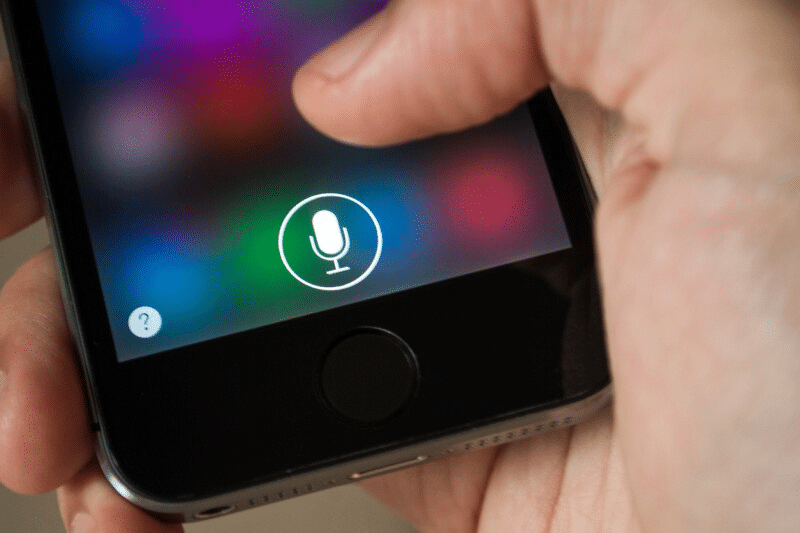
On iPhone models with Touch ID (iPhone 8 and earlier), press and hold the Home button until Siri activates. This method is reliable and works even in noisy environments where voice activation might struggle.
Using Headphones or AirPods
If you’re wearing compatible Apple headphones or AirPods, you can activate Siri without touching your phone at all. With AirPods, simply say “Hey Siri” if you’ve enabled that feature, or press and hold the force sensor on AirPods Pro or the stem on regular AirPods. With wired EarPods, press and hold the center button on the remote. 🎧
Customizing Your Siri Experience
Activation is just the beginning. Apple provides numerous customization options to make Siri work exactly how you want it to.
Choosing Siri’s Voice
In the Siri & Search settings, you can select from different voice options. Apple offers multiple accents and genders for Siri’s voice in many languages. Tap “Siri Voice” to browse the available options, and you can preview each voice before selecting your favorite.
Recent iOS updates have introduced more diverse and natural-sounding voices, moving away from the traditional robotic assistant sound toward something more conversational and human-like.
Voice Feedback Settings
You can control when Siri speaks responses aloud. In Siri settings, look for “Siri Responses” or “Voice Feedback” and choose from:
- Always On: Siri speaks all responses regardless of whether Silent mode is active
- Control with Ring Switch: Siri only speaks when your phone isn’t in Silent mode
- Hands-Free Only: Siri speaks only when using “Hey Siri” or headphones, staying silent when activated by button
This flexibility is particularly useful if you frequently use Siri in public places where spoken responses might be disruptive. 🔇
My Information Settings
Teaching Siri who you are enhances the personal nature of the assistant. In Siri settings, tap “My Information” and select your contact card from your contacts list. This allows Siri to understand commands like “Call my wife” or “Remind me to buy milk when I get home,” because Siri will know your relationships and home address.
Troubleshooting Common Siri Activation Issues 🔧
Even though Siri activation is generally smooth, sometimes users encounter hiccups. Here are solutions to the most common problems.
Siri Doesn’t Respond to “Hey Siri”
If voice activation isn’t working, try these fixes:
- Verify that “Listen for ‘Hey Siri'” is toggled on in Settings > Siri & Search
- Ensure your iPhone isn’t face-down (some models disable this feature when face-down)
- Check that Low Power Mode isn’t active, as it disables “Hey Siri” on some models
- Re-train Siri by toggling “Hey Siri” off and on again, then going through the setup process
- Make sure no case or screen protector is covering the microphones
Siri Activates But Doesn’t Understand Commands
If Siri activates but seems unable to process what you’re saying, the issue might be:
- Poor internet connection—check your Wi-Fi or cellular data
- Background noise interfering with voice recognition
- Speaking too quickly or unclearly—try speaking at a moderate pace
- Microphone issues—test by making a phone call to see if the other person can hear you clearly
Button Activation Not Working
If pressing the side or home button doesn’t summon Siri, ensure that “Press Side Button for Siri” (or “Press Home for Siri”) is enabled in Siri settings. Also, verify that you’re holding the button long enough—a quick press won’t work; you need to press and hold for about a second.
Privacy and Security Considerations 🔒
Activating Siri means allowing your device to listen for the wake phrase and sending voice data to Apple’s servers. Understanding the privacy implications helps you make informed decisions about how you use this feature.
Apple has implemented several privacy protections. Voice recordings are associated with a random identifier rather than your Apple ID, and you can delete your Siri history from Apple’s servers through Settings > Siri & Search > Siri & Dictation History.
The “Allow Siri When Locked” setting deserves special consideration. While convenient, enabling this means anyone can ask Siri questions or make requests even when your phone is locked. Siri won’t open apps or access sensitive information without authentication, but someone could send messages or make calls. Consider your personal security needs when deciding on this setting.
For maximum privacy, you can disable “Hey Siri” and only use button activation, ensuring your phone only listens when you explicitly activate the assistant.
Maximizing Siri’s Potential After Activation 🚀
Once Siri is active and configured, the journey has just begun. The assistant becomes more valuable as you discover its capabilities and integrate it into your daily routines.
Creating Useful Shortcuts
iOS includes a Shortcuts app that works seamlessly with Siri, allowing you to create custom voice commands that trigger complex actions. You might create a “Good Morning” shortcut that turns off your alarm, reads your calendar, tells you the weather, and starts playing your favorite podcast—all with one voice command.
App Integration
Many third-party apps support Siri integration, expanding what you can do with voice commands. In Settings > Siri & Search, you’ll see a list of all your apps. Tap any app to enable “Use with Ask Siri” and allow that app to suggest shortcuts based on your usage patterns.
Learning Siri’s Capabilities
The best way to get comfortable with Siri is experimentation. Try asking questions, making requests, and exploring different command structures. You can ask “What can you do?” to get suggestions, or simply start trying commands that would make your life easier. Siri’s natural language processing means you don’t need to memorize exact phrases—just speak naturally.
Advanced Siri Features Worth Exploring 💡
Beyond basic activation and use, Siri offers sophisticated features that many users never discover.
Type to Siri
If you’re in a situation where speaking isn’t appropriate, you can type your requests instead. Enable this by going to Settings > Accessibility > Siri and toggling on “Type to Siri.” Once enabled, when you activate Siri, a keyboard will appear allowing you to type your question or command.
Language Switching
Bilingual users can ask Siri to switch languages on the fly. In Siri settings, you can add multiple languages, and Siri will understand commands in any of them without manual switching.
Announce Messages and Calls
When connected to compatible headphones or in your car, Siri can announce incoming messages and calls, reading them aloud so you don’t need to look at your screen. This feature is configured in Settings > Siri & Search > Announce Notifications.
Making Siri Work Across Your Apple Ecosystem 🌐
If you own multiple Apple devices—an iPad, Mac, Apple Watch, or HomePod—Siri can work seamlessly across all of them once activated.
The same Apple ID links your Siri experience across devices, learning your preferences and history to provide consistent assistance regardless of which device you’re using. Activating Siri on your iPhone using the steps we’ve covered will inform your Siri experience on other devices, though you’ll need to enable Siri individually on each device through their respective settings.
This ecosystem integration means you can start a task on one device and continue on another, or use the device most convenient at the moment. Ask your Apple Watch to send a message while jogging, your HomePod to set a cooking timer while your hands are messy, or your iPad to find a recipe while your iPhone is charging in another room.
Embracing Voice-First Interaction 🎤
Activating Siri represents more than just turning on a feature—it’s adopting a new way of interacting with technology that’s often faster and more natural than traditional touch interfaces.
The initial setup takes just minutes, but the benefits extend far into the future. As you become more comfortable with voice commands, you’ll find yourself reaching for your phone less often, accomplishing tasks more quickly, and accessing information without interrupting whatever else you’re doing.
Voice assistants like Siri represent the future of human-computer interaction. By activating and regularly using Siri, you’re not just enabling a convenient feature—you’re preparing yourself for a technology landscape where voice will play an increasingly central role.
Whether you’re a new iPhone user just discovering Siri’s potential or a long-time Apple customer finally ready to embrace voice assistance, the activation process is your first step toward a more efficient, hands-free mobile experience. Take a few minutes today to set up Siri properly, customize it to your preferences, and start exploring what this powerful assistant can do for you.
The power of having a personal assistant in your pocket, ready to help with a simple “Hey Siri,” is genuinely transformative once you experience it firsthand. So go ahead—activate Siri and discover just how much easier your digital life can become. 🌟
