
Anúncios
Unlock the Power of Siri on Your Device

Activate Siri Today
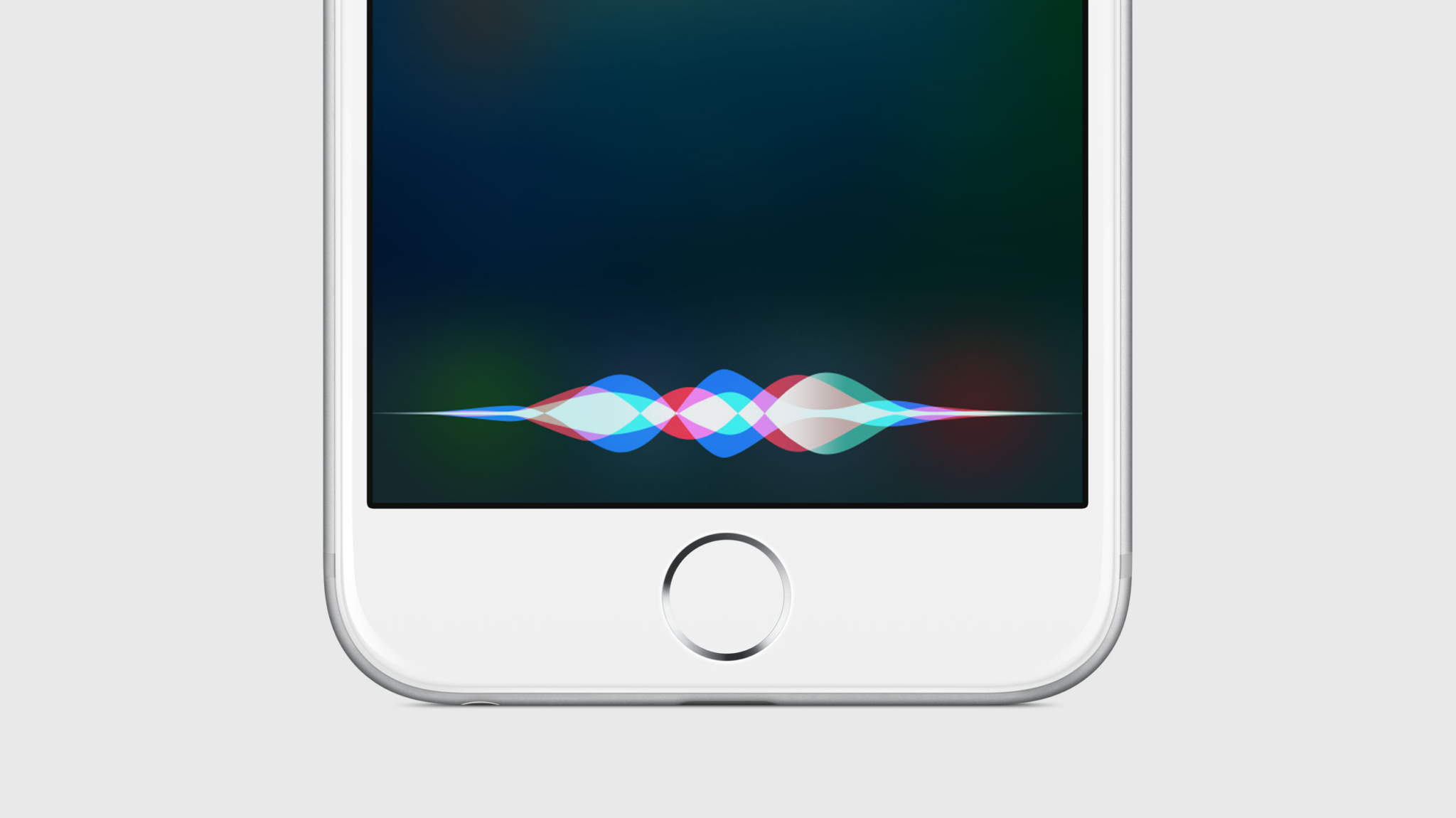
Siri has revolutionized the way we interact with our mobile devices, transforming voice commands into powerful actions that simplify our daily lives. Whether you’re driving, cooking, or simply want to keep your hands free, activating Siri on your mobile phone opens up a world of convenience and productivity that’s just a voice command away. 📱
Understanding how to properly activate and configure Siri on your device is essential to maximizing its potential. From setting up voice recognition to customizing activation methods, this comprehensive guide will walk you through everything you need to know about getting Siri up and running on your mobile phone, regardless of your tech expertise level.
Anúncios
What Makes Siri Your Perfect Digital Assistant 🎯
Siri stands as one of the most sophisticated voice assistants available on mobile devices today. Developed by Apple, this intelligent assistant uses advanced natural language processing and machine learning to understand your requests, context, and even your preferences over time. The more you use Siri, the better it becomes at anticipating your needs and providing relevant responses.
The beauty of Siri lies in its versatility. You can ask it to send messages, make phone calls, set reminders, check the weather, play music, navigate to destinations, and perform hundreds of other tasks without ever touching your screen. This hands-free functionality isn’t just convenient—it’s transformative for accessibility, safety, and multitasking efficiency.
Anúncios
Essential Requirements Before Activating Siri
Before diving into the activation process, it’s important to ensure your device meets the necessary requirements. Siri is available on iPhone 4s and later models, which means most modern iPhones support this feature. Your device should be running iOS 5 or later, though newer versions of iOS offer significantly enhanced Siri capabilities.
You’ll also need an active internet connection for Siri to function properly. Siri processes most requests through Apple’s servers, which means Wi-Fi or cellular data is essential. Additionally, ensure your device’s microphone is working correctly and not obstructed by cases or screen protectors that might interfere with voice detection.
Step-by-Step Guide to Activating Siri on iPhone 🔧
Activating Siri on your iPhone is a straightforward process that takes just a few moments. Here’s how to get started:
First, unlock your iPhone and locate the Settings app on your home screen. The Settings icon resembles a gray gear and is typically found on the first page of your apps. Tap to open it, and you’ll enter the main settings menu where you can configure all aspects of your device.
Once inside Settings, scroll down until you find the “Siri & Search” option. This dedicated section contains all the controls and preferences related to Siri’s functionality. Tap on it to access the comprehensive Siri settings menu.
Within the Siri & Search menu, you’ll see several toggle switches at the top. The first and most important is “Listen for ‘Hey Siri'” which enables voice activation. Toggle this switch to the on position (it will turn green). Your iPhone will then prompt you to set up the Hey Siri feature by guiding you through a brief training process.
Training Siri to Recognize Your Voice
The training process is crucial for optimal performance. Your iPhone will ask you to say several phrases out loud, such as “Hey Siri,” “Hey Siri, send a message,” and “Hey Siri, how’s the weather today?” This process helps Siri learn the unique characteristics of your voice, including your accent, tone, and pronunciation patterns.
Speak naturally and clearly during this training session. Don’t shout or whisper—use your normal speaking voice at a conversational volume. The training typically takes about a minute, and you can repeat it if Siri has trouble understanding you initially.
Additional Activation Methods
Beyond “Hey Siri,” there are other convenient ways to activate your digital assistant. The “Press Side Button for Siri” option (or “Press Home Button for Siri” on older models) allows you to summon Siri by pressing and holding the physical button on your device. This method works even when voice activation is disabled or when you’re in a noisy environment where voice commands might not be reliable.
For devices with Face ID, you can also enable “Allow Siri When Locked,” which lets you use Siri without unlocking your device first. This is particularly useful for quick queries or commands when your hands are occupied or when you’re wearing gloves.
Customizing Siri Settings for Optimal Performance ⚙️
After activating Siri, take time to customize its settings to match your preferences and usage patterns. Within the Siri & Search menu, you’ll find several important options that enhance your experience.
The “Language” setting allows you to choose which language Siri will use for understanding and responding to your commands. Siri supports dozens of languages and dialects, making it accessible to users worldwide. Select the language you’re most comfortable speaking to ensure accurate comprehension.
The “Siri Voice” option lets you choose between different voice styles and accents. You can select male or female voices in various accents, allowing you to personalize Siri’s responses to your liking. Some languages offer multiple accent options, such as American, British, or Australian English.
Voice Feedback Configuration
The “Voice Feedback” setting controls when and how Siri speaks responses aloud. You can choose “Always On” for Siri to always respond audibly, “Control with Ring Switch” to respect your device’s mute setting, or “Hands-Free Only” for Siri to speak only when using Hey Siri or connected to Bluetooth devices. This flexibility ensures Siri behaves appropriately in different contexts and environments.
Troubleshooting Common Activation Issues 🔍
Sometimes you might encounter difficulties getting Siri to activate properly. Here are solutions to the most common problems:
If “Hey Siri” isn’t responding, first check that the feature is enabled in Settings. Ensure your iPhone is plugged into power (required for some older models), and verify that your microphone isn’t obstructed. Background noise can also interfere with voice detection, so try moving to a quieter location.
For devices where Siri won’t activate via the side or home button, check that the button itself is functioning properly. Try cleaning around the button to remove any debris, and test the button in other contexts to confirm it’s responsive. If the button works elsewhere but not for Siri, restart your device and check the Siri settings again.
Network Connectivity Problems
Since Siri requires an internet connection, connectivity issues can prevent activation. If Siri says it can’t connect to the network, check your Wi-Fi or cellular data connection. Toggle airplane mode on and off to reset your connections, or try switching between Wi-Fi and cellular data to identify the problem source.
Some network firewalls or parental controls might block Siri’s access to Apple’s servers. If you’re on a corporate or school network, speak with your IT administrator about enabling Siri functionality.
Advanced Siri Features Worth Exploring 🚀
Once Siri is activated and running smoothly, explore its advanced capabilities to truly maximize its value. Siri Shortcuts allow you to create custom voice commands that trigger complex actions or sequences of tasks. For example, you could create a “Heading Home” shortcut that texts your family, starts navigation, and adjusts your smart home settings—all with a single voice command.
Siri can also integrate with third-party apps that support SiriKit. This means you can use voice commands to order food, book rides, send messages through various platforms, and control countless apps without opening them manually. Check which of your installed apps support Siri by looking in the Siri & Search settings under each app’s individual settings.
Type to Siri for Silent Situations
In situations where speaking aloud isn’t appropriate, enable “Type to Siri” in the Accessibility settings under Siri. This feature lets you communicate with Siri through text input rather than voice commands, perfect for meetings, libraries, or any quiet environment. You’ll still receive all of Siri’s powerful functionality without making a sound.
Privacy and Security Considerations 🔒
Understanding how Siri handles your data is important for making informed decisions about its use. When you make a Siri request, your voice is sent to Apple’s servers for processing. Apple anonymizes this data by associating it with a random identifier rather than your Apple ID, and you can reset this identifier at any time in Settings.
Your Siri requests and interactions are stored temporarily to improve accuracy and personalization, but Apple states that this data is not used to build marketing profiles. You can delete your Siri history by going to Settings > Siri & Search > Siri & Dictation History and selecting “Delete Siri & Dictation History.”
For maximum privacy, you can disable “Listen for ‘Hey Siri'” and only activate Siri manually using the side or home button. You can also disable Siri access when your device is locked to prevent unauthorized use.
Maximizing Battery Life While Using Siri 🔋
The “Hey Siri” feature requires your iPhone to constantly listen for the activation phrase, which can impact battery life. However, Apple has optimized this process to minimize power consumption. Modern iPhones use a dedicated low-power processor specifically for Hey Siri detection, making the battery impact negligible for most users.
If you notice significant battery drain, consider disabling “Hey Siri” and using button activation instead. This eliminates the constant listening function while maintaining full Siri functionality. You can also restrict Siri’s background app refresh permissions if certain apps are using Siri integrations excessively.
Using Siri Across Your Apple Ecosystem 🌐
One of Siri’s greatest strengths is its seamless integration across all your Apple devices. Once activated on your iPhone, you can enable Siri on your iPad, Mac, Apple Watch, HomePod, and even AirPods. Commands and preferences sync through iCloud, creating a consistent experience regardless of which device you’re using.
For example, you can start a reminder on your iPhone using Siri, and it will appear on your Mac and Apple Watch automatically. You can also hand off Siri requests between devices, continuing conversations or tasks as you move through your day and switch between gadgets.
Practical Tips for Getting the Most from Siri 💡
To truly leverage Siri’s capabilities, consider these practical usage tips that experienced users swear by:
- Speak naturally and conversationally—Siri understands context and doesn’t require robotic commands
- Use follow-up questions without repeating “Hey Siri” by enabling “Raise to Speak” or keeping the Siri interface open
- Combine multiple requests in one command, like “Remind me to call mom at 3 PM and set a timer for 20 minutes”
- Take advantage of Siri’s ability to understand relationships by teaching it who your family members are
- Use Siri for quick calculations, conversions, and fact-checking without opening apps
- Ask Siri to read your messages and emails aloud while driving or exercising
- Control your smart home devices through Siri if they’re compatible with HomeKit
The Future of Voice Activation Technology 🔮
As artificial intelligence and natural language processing continue to evolve, Siri’s capabilities expand with each iOS update. Recent improvements include better contextual awareness, more natural conversation flow, on-device processing for common requests (improving both speed and privacy), and enhanced integration with third-party services.
Apple continues investing heavily in Siri development, with future updates promising even more sophisticated understanding, proactive suggestions based on your habits, and deeper integration with emerging technologies like augmented reality and advanced machine learning models.
Making Siri Part of Your Daily Routine ✨
The key to getting maximum value from Siri is incorporating it into your daily activities. Start small by using it for simple tasks like setting alarms or checking the weather, then gradually expand to more complex uses like managing your calendar, controlling smart home devices, or using app shortcuts.
Many users find that Siri becomes indispensable once they overcome the initial awkwardness of talking to their device. The convenience of hands-free operation, especially while driving, cooking, or exercising, quickly becomes habit-forming. The time saved by speaking commands instead of typing or navigating through apps adds up significantly over days and weeks.
Remember that Siri learns from your interactions, so the more you use it, the better it becomes at understanding your preferences, speech patterns, and common requests. Give it time, be patient with occasional misunderstandings, and you’ll soon wonder how you managed without this powerful digital assistant at your fingertips—or rather, at the sound of your voice.
Activating Siri on your mobile phone isn’t just about enabling a feature; it’s about embracing a more efficient, accessible, and futuristic way of interacting with technology. Whether you’re a tech enthusiast eager to explore every capability or someone simply looking for convenient ways to stay connected and organized, Siri offers something valuable for everyone. Take the time to set it up properly, customize it to your preferences, and discover the countless ways this intelligent assistant can simplify and enhance your mobile experience. 🎉
