
Anúncios
Activating Siri: Your Personal Voice Assistant
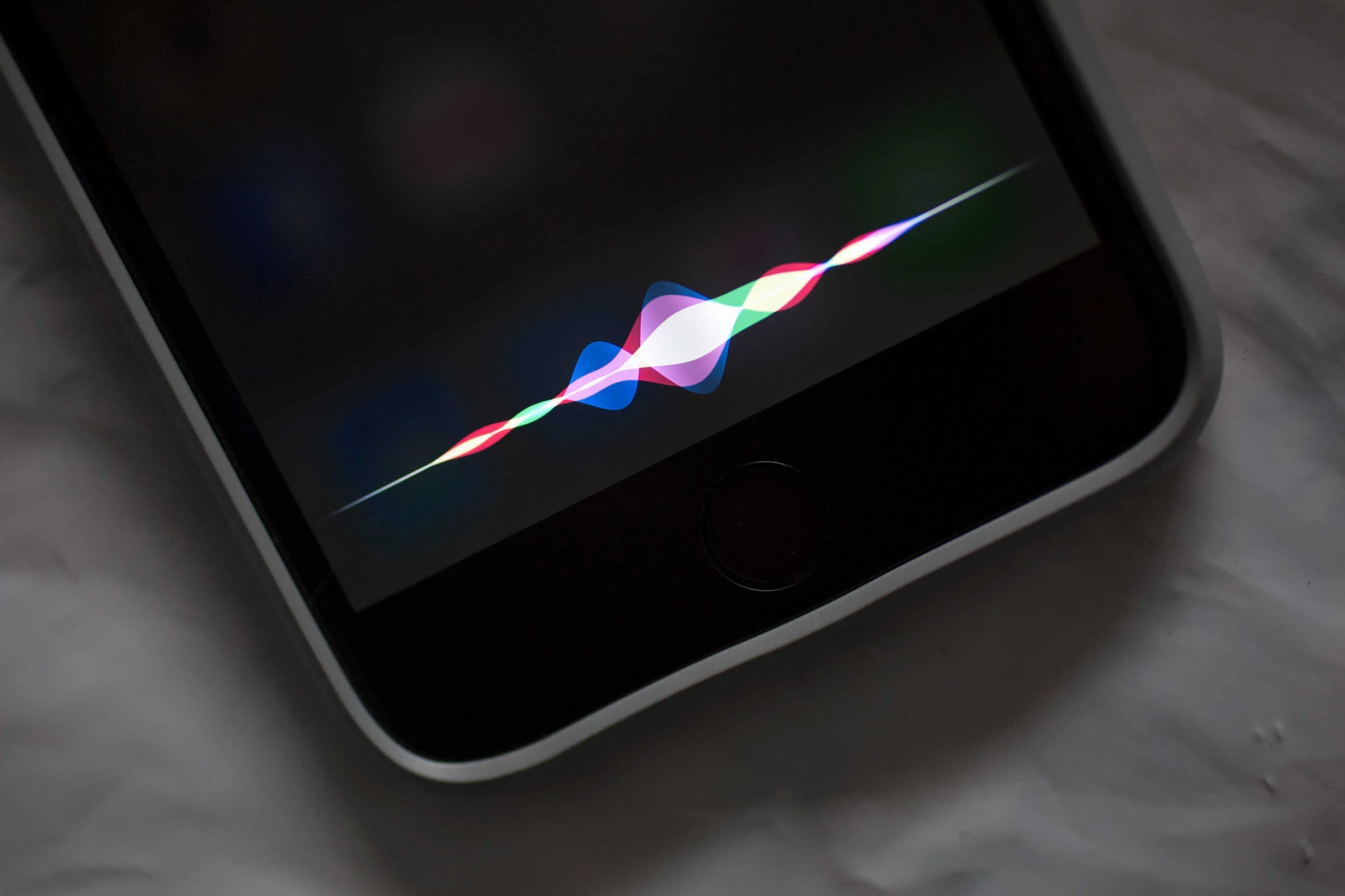
Activate Siri Now
Siri has revolutionized the way we interact with our mobile devices, transforming simple voice commands into powerful actions that make our daily lives easier. Whether you’re driving, cooking, or simply have your hands full, activating Siri gives you instant access to information, communication, and device control without ever touching your screen. 📱
Understanding how to properly activate and use Siri on your mobile phone isn’t just about convenience—it’s about unlocking the full potential of your device. From setting reminders to sending messages, making calls, or even controlling your smart home devices, Siri serves as your personal digital assistant ready to help at a moment’s notice.
Anúncios
Understanding Siri and Its Capabilities 🎯
Siri is Apple’s intelligent voice assistant, first introduced in 2011 with the iPhone 4S. Since then, it has evolved dramatically, incorporating advanced machine learning and natural language processing to understand context, accents, and even follow-up questions without requiring you to repeat the wake word.
The voice assistant can perform hundreds of tasks, from the mundane to the complex. You can ask Siri to check the weather, set timers, play specific songs, send text messages, make phone calls, navigate to locations, search the web, translate phrases, calculate math problems, and control compatible smart home devices—all through simple voice commands.
Anúncios
What makes Siri particularly powerful is its integration across the entire Apple ecosystem. The same assistant that works on your iPhone also functions on your iPad, Apple Watch, Mac, HomePod, and even AirPods, creating a seamless experience regardless of which device you’re using.
Primary Methods to Activate Siri on Your iPhone 🔊
There are several ways to wake up Siri on your mobile device, and understanding each method allows you to choose the most convenient option for any situation.
Using the Side or Home Button
The most traditional method involves using a physical button on your device. For iPhones with Face ID (iPhone X and later), you’ll press and hold the side button on the right edge of your phone. You’ll feel a slight vibration and see the Siri interface appear on your screen, indicating that Siri is listening and ready for your command.
For older iPhone models with a Home button (iPhone 8 and earlier), simply press and hold the circular Home button at the bottom of your device. The same visual and haptic feedback will confirm that Siri has activated and is awaiting your instructions.
This method is particularly useful in noisy environments where voice activation might not work reliably, or when you want to be discreet and avoid speaking out loud in public spaces.
Voice Activation with “Hey Siri” 🗣️
The hands-free voice activation feature is perhaps the most convenient way to use Siri, especially when you’re occupied with other tasks. Simply say “Hey Siri” followed by your command, and your device will respond without any physical interaction required.
This method works when your iPhone is plugged into power, and on newer models (iPhone 6s and later), it functions even when the device isn’t charging. The feature uses low-power processors to constantly listen for the wake phrase without significantly impacting battery life.
Voice activation is ideal when you’re cooking with messy hands, driving (though always prioritize road safety), exercising, or whenever touching your phone would be inconvenient or unsafe.
Using AirPods or Headphones 🎧
If you’re wearing compatible AirPods or Beats headphones, you can activate Siri directly through your earbuds. For AirPods (2nd generation and later) and AirPods Pro, simply say “Hey Siri” while wearing them, and the assistant will activate through your headphones.
For first-generation AirPods and some other compatible headphones, double-tap on either earbud to activate Siri. You can customize this gesture in your Bluetooth settings to ensure it works according to your preferences.
This method is particularly useful when your phone is in your pocket or bag, allowing truly hands-free operation while maintaining privacy since you hear Siri’s responses directly in your ears.
Setting Up Siri for the First Time ⚙️
Before you can use any of these activation methods, you’ll need to ensure Siri is properly configured on your device. The setup process is straightforward and only takes a few moments.
Initial Configuration Steps
Open the Settings app on your iPhone and scroll down until you find “Siri & Search.” Tap on this option to access all Siri-related settings. Here you’ll see several toggles that control how Siri functions on your device.
First, enable “Listen for ‘Hey Siri'” if you want voice activation. When you toggle this on for the first time, your iPhone will guide you through a brief setup process where you’ll speak several phrases. This training helps Siri recognize your specific voice, improving accuracy and adding a layer of security since it will primarily respond to you rather than others around your device.
Next, enable “Press Side Button for Siri” (or “Press Home for Siri” on older models) if you want the button activation method available. You can have both methods enabled simultaneously, giving you flexibility in how you access your assistant.
Customizing Siri Settings
Within the Siri & Search settings, you’ll find additional customization options that enhance your experience. The “Language” option lets you select which language Siri will understand and respond in, with support for dozens of languages and regional dialects.
The “Siri Voice” setting allows you to choose the gender and accent of your assistant’s voice. Apple offers multiple voice options in many languages, letting you personalize the experience to your preference.
You can also choose whether Siri provides voice feedback always, only when using hands-free mode, or never (visual responses only). This flexibility is useful if you frequently use your phone in quiet environments where spoken responses might be disruptive.
Advanced Siri Activation Features 🚀
Beyond the basic activation methods, there are several advanced features that make using Siri even more powerful and convenient.
Type to Siri
Not everyone is comfortable speaking to their device, especially in public settings or quiet environments. Apple recognized this and created “Type to Siri,” which lets you type your requests instead of speaking them.
To enable this feature, go to Settings > Accessibility > Siri, and toggle on “Type to Siri.” Once activated, when you trigger Siri using the button method, a keyboard will appear instead of the voice interface, allowing you to type your question or command silently.
This feature is particularly valuable in meetings, libraries, late at night when others are sleeping, or for users with speech difficulties who still want to access Siri’s capabilities.
Siri Shortcuts Integration
Siri Shortcuts take activation to another level by allowing you to create custom voice commands that trigger complex sequences of actions. Through the Shortcuts app, you can build workflows that execute multiple steps with a single phrase.
For example, you might create a “Good Morning” shortcut that, when you say “Hey Siri, good morning,” automatically turns off your alarm, reads your calendar appointments, provides a weather report, starts your coffee maker (if it’s smart home enabled), and plays your favorite morning playlist—all automatically.
Many apps support Siri Shortcuts, and you can combine actions from different apps into powerful custom commands that save time and streamline your daily routines.
Troubleshooting Common Siri Activation Issues 🔧
Sometimes Siri doesn’t activate as expected, but most issues have simple solutions that you can implement yourself without needing technical support.
Hey Siri Not Responding
If voice activation isn’t working, first verify that “Listen for ‘Hey Siri'” is enabled in Settings > Siri & Search. If it’s already on, try turning it off and back on again, which will prompt you to retrain Siri to recognize your voice.
Check that your microphone isn’t blocked by a case or screen protector. Try removing any accessories temporarily to see if that resolves the issue. Also ensure that Low Power Mode isn’t active, as this can sometimes limit Hey Siri functionality on some devices.
If you’re in a very noisy environment, Siri might have difficulty distinguishing your voice from background sounds. Try speaking more clearly or moving to a quieter location to test if environmental factors are the problem.
Button Activation Not Working
If pressing the side or home button doesn’t activate Siri, check that “Press Side Button for Siri” (or the Home button equivalent) is enabled in Settings > Siri & Search. Make sure you’re holding the button rather than just pressing it briefly—activation requires a long press, not a quick tap.
If the button itself seems unresponsive to all functions (not just Siri), you might have a hardware issue that requires professional attention from Apple Support or an authorized service provider.
Siri Activating Accidentally
Some users find that Siri activates unintentionally, which can be frustrating. If this happens frequently with Hey Siri, you might consider disabling voice activation and relying solely on button activation for more control.
Accidental button activation often occurs when gripping your phone tightly or when it’s in a tight pocket. You can disable button activation and use only Hey Siri, or adjust how you hold and store your device to prevent unintended presses.
Privacy Considerations with Siri Activation 🔒
Understanding how Siri handles your data is important, especially since the assistant requires microphone access and processes your voice commands.
When you use Siri, your requests are sent to Apple’s servers for processing, as the complex natural language understanding requires computational power beyond what your phone can handle locally. However, Apple has implemented numerous privacy protections, including encrypting your requests and not associating them with your Apple ID by default.
You can review and delete your Siri history by going to Settings > Siri & Search > Siri & Dictation History. Here you can see what data has been stored and delete it if desired. Apple typically retains voice recordings for a limited time to improve Siri’s accuracy, but you have control over this data.
The “Hey Siri” feature means your device is always listening for the wake phrase, which concerns some users. However, this listening happens locally on your device using dedicated low-power processors, and nothing is sent to Apple until after the wake word is detected and confirmed. The system is designed to minimize privacy intrusion while maintaining functionality.
Optimizing Your Siri Experience 💡
Getting the most from Siri involves understanding how to communicate effectively with your voice assistant and leveraging its full range of capabilities.
Speaking Naturally with Siri
Modern Siri understands natural language, so you don’t need to use robotic commands or specific phrasing. Instead of saying “Set alarm seven AM,” you can naturally say “Wake me up at 7 tomorrow morning” or “I need to be up by 7.” Both work equally well.
Siri also handles context from previous questions, so you can have more conversational interactions. If you ask “What’s the weather today?” and then follow up with “What about tomorrow?” Siri understands you’re still asking about weather without needing to repeat the full question.
Learning Useful Commands
While Siri can do hundreds of things, here are some particularly useful commands to incorporate into your daily routine:
- “Remind me about this when I get home” – Creates location-based reminders
- “Find my iPhone” – Locates your device if you’ve misplaced it nearby
- “Read my latest messages” – Helpful when driving or hands are occupied
- “Set a timer for 15 minutes” – Perfect for cooking and time management
- “What song is this?” – Identifies music playing around you using Shazam integration
- “Show me photos from last summer” – Searches your photo library by time, location, or content
- “Calculate 18% tip on $67” – Quick calculations without opening the calculator app
- “Turn on Do Not Disturb until 8 AM” – Temporarily silences notifications
Maximizing Battery Life
While Siri is designed to be efficient, having Hey Siri always listening does consume some battery power. If you’re trying to maximize battery life, consider disabling Hey Siri and using only button activation, which doesn’t require any background processing.
You can also enable “Low Power Mode” when your battery is running low, though this may disable Hey Siri on some older iPhone models until you charge your device again.
Siri Across Different iPhone Models 📱
The Siri experience varies slightly depending on which iPhone model you own, as newer devices have enhanced capabilities and more activation options.
iPhone 6s and later models support always-on Hey Siri, meaning you can activate Siri with your voice even when the phone isn’t plugged in. Older models (iPhone 6 and earlier) require the device to be connected to power for Hey Siri to function, though button activation always works regardless of power status.
iPhones with the A12 Bionic chip or newer (iPhone XS, XR, and later) process some Siri requests directly on the device without sending data to Apple’s servers, improving response time and enhancing privacy. These on-device capabilities continue to expand with each iOS update.
Face ID-equipped iPhones (iPhone X and later) require you to look at your phone for certain Siri actions, adding a security layer that prevents others from using Siri to access sensitive information when you’re not actively using your device.
Making Siri Work in Different Scenarios 🌟
Understanding when and how to activate Siri in various real-world situations helps you integrate the assistant seamlessly into your lifestyle.
While Driving
Siri becomes invaluable when driving, allowing you to keep your hands on the wheel and eyes on the road. Hey Siri voice activation is essential here, letting you make calls, send messages, get directions, and control music without physical interaction with your phone.
Many vehicles with CarPlay integration allow Siri activation through steering wheel buttons, providing even more convenient access while driving. Always prioritize road safety and use Siri only when it doesn’t distract from driving.
During Workouts
When exercising, your hands might be sweaty, on equipment, or holding weights, making button activation impractical. Hey Siri or AirPods activation becomes the preferred method, letting you change songs, check your workout progress, or set interval timers without interrupting your routine.
In Professional Settings
Office environments often require discretion. Type to Siri becomes particularly valuable here, allowing you to access Siri’s capabilities silently. You can quickly set reminders, check your calendar, or search for information without disrupting colleagues or meetings.

The Future of Siri Activation ✨
Apple continuously improves Siri with each iOS update, enhancing both activation methods and capabilities. Recent updates have improved voice recognition accuracy, expanded language support, and introduced more natural conversation abilities.
Future developments may include even more contextual awareness, where Siri anticipates your needs before you even ask, or improved multi-user recognition that automatically knows who’s speaking and personalizes responses accordingly.
As artificial intelligence and machine learning technologies advance, we can expect Siri activation to become even more seamless, potentially responding to gestures, understanding whispered commands in quiet environments, or activating based on contextual clues about what you’re doing.
The integration of Siri with augmented reality devices, like Apple’s Vision Pro, hints at future activation methods that might involve eye tracking, hand gestures, or spatial commands that work in three-dimensional environments.
Activating Siri on your mobile phone opens up a world of convenience and productivity that transforms how you interact with technology. Whether you prefer speaking naturally with Hey Siri, using button controls for precision, or typing for discretion, understanding all the activation methods ensures you can access your intelligent assistant whenever you need it, in whatever situation you find yourself. The key is experimenting with different methods, customizing settings to match your preferences, and gradually incorporating Siri into your daily routines until voice assistance becomes second nature. 🎉
